AI Product Photography: Prompt Templates for Studio, Lifestyle and Detail Shots
 Dola Team
How to create product photos with an AI image generator — six shot types, copy-ready prompt templates, lighting and background choices, which model to use and how to keep a real product accurate.
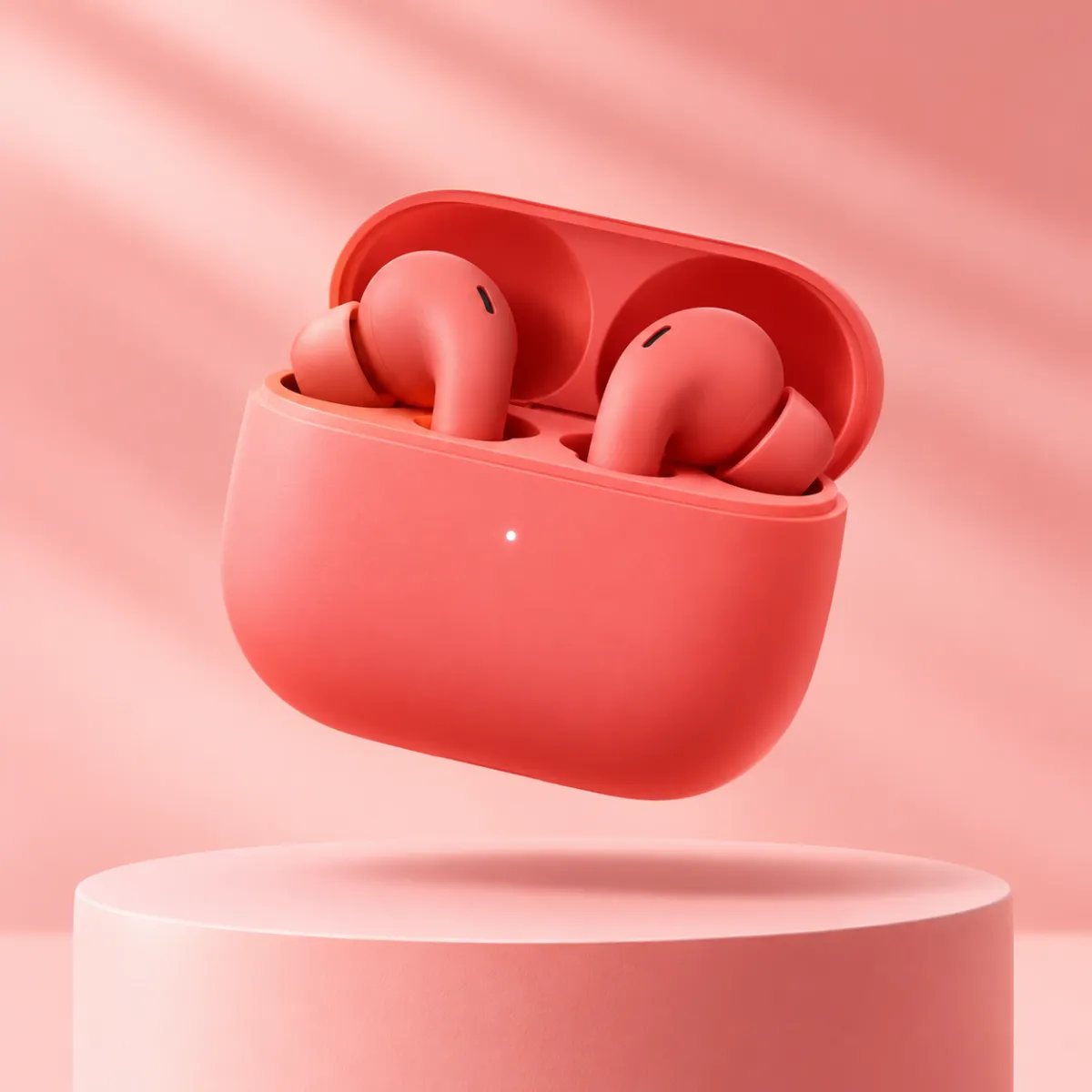
A product listing needs more images than most sellers can shoot: a clean main image, a lifestyle scene, a detail close-up, seasonal versions, square crops for ads and tall crops for Stories. An AI image generator can produce most of these in an afternoon. The catch is that a generator invents products as easily as it photographs them, so the workflow has to protect what makes your product yours.
This guide covers six shot types that cover most e-commerce needs, prompt templates for each, and the two ways to work on Dola AI: generating a product from a description, and editing a real photo of your product.
Two ways to make AI product photos
1. Generate from text. Describe the product and the scene in the AI Image Generator. This is ideal for concept work: packaging ideas, mood boards, ad concepts, or products that don't exist yet. It is not reliable for real products, because the model will change details — the logo, the shape of a cap, the number of buttons.
2. Edit a real photo. Upload a photo of the actual product to the AI Image Editor and describe the new scene: "place this bottle on a wet black stone with water droplets". The model keeps the product and changes the surroundings. This is the method to use for anything you will sell. You can add up to four reference images, for example the product from two angles plus a reference for the background style.
The rest of this guide gives templates you can use either way: as a full prompt for generation, or as the scene part of an edit instruction.
The anatomy of a product prompt
Product prompts work best in this order:
- Product — what it is, material, color, size cues. "A matte black stainless-steel water bottle, 750 ml".
- Placement — what it stands on and how. "standing upright on a slab of light grey concrete".
- Background — "seamless white backdrop", "blurred kitchen behind".
- Lighting — "soft diffused studio light from the left, gentle shadow to the right".
- Camera — "eye-level, 85 mm lens, product centered, sharp focus".
- Mood or use — "clean premium e-commerce style".
Shot type 1: The clean main image
Marketplaces such as Amazon expect a main image with the product on pure white, filling most of the frame. Check your marketplace's current image rules before uploading.
A [product], centered, filling 85% of the frame, on a pure white seamless background, soft even studio lighting, subtle natural shadow beneath, sharp focus, high detail, e-commerce product photo.
Tips: Use 1:1. Ask for "pure white background" rather than "white", which can come out light grey. For real products, edit your own photo with "replace the background with pure white, keep the product unchanged".
Shot type 2: The styled studio shot
A colored backdrop, a pedestal, some props. This is the shot for ads and brand pages.
A [product] standing on a cylindrical [color] pedestal, matching pastel [color] backdrop, a few [props] arranged around the base, soft key light from upper left, crisp shadows, modern minimalist studio photography.
Props that work: fresh ingredients for food and cosmetics (citrus slices, leaves, flowers), stones and water for outdoor gear, fabric for fashion. Keep it to two or three props.
Shot type 3: The lifestyle scene
The product in use, in a real-looking place. Lifestyle images help buyers imagine owning the product.
A [product] on a wooden desk next to a laptop and a cup of coffee, morning sunlight through a window, a plant in the blurred background, natural warm tones, lifestyle photography, shallow depth of field.
Tips: Avoid showing faces unless you need them; hands holding or using the product are usually enough and less likely to look artificial. Ask for "shallow depth of field" so the product is sharp and the scene is soft.
Shot type 4: The detail close-up
Texture, stitching, a button, a label. Close-ups answer the questions buyers would ask in a shop.
Extreme close-up of the [detail] on a [product], showing the texture of the [material], soft raking light from the side, very shallow depth of field, macro photography.
Tips: Raking light (light that skims across the surface) brings out texture. For real products, a close-up should come from a real photo; an AI close-up of an invented texture can mislead buyers.
Shot type 5: The flat lay
Products and accessories arranged and photographed from above. Popular for kits, cosmetics, stationery and food.
Top-down flat lay of a [product] with [accessories] neatly arranged on a [surface], soft diffused daylight, even shadows, balanced composition with negative space on the right for text.
Tips: "Negative space on the right for text" gives you room for a headline in ads.
Shot type 6: The seasonal or campaign version
The same product dressed for a season or event.
A [product] on a snowy wooden surface with pine branches and warm fairy lights in the blurred background, cozy winter evening light, festive but minimal.
Generate the main image first, then reuse the same product with seasonal scenes through the editor so the product stays identical across the set.
Lighting cheat sheet for products
| Lighting phrase | Effect | Good for | | -------------------------- | --------------------------- | ----------------------------- | | soft diffused studio light | Even, few shadows | Main images, cosmetics | | hard light, crisp shadows | Bold, graphic | Fashion, sneakers, ads | | rim light / backlight | Bright outline around edges | Glass, bottles, dark products | | raking side light | Shows texture | Leather, fabric, wood | | golden hour sunlight | Warm, lifestyle feel | Outdoor, food, home | | dark moody low-key light | Premium, dramatic | Watches, spirits, perfume |
Glass and shiny metal are the hardest materials. Ask for "controlled reflections" and "rim light", and expect to generate a few versions.
Which model to choose
Dola AI offers three image models. Their costs per image are shown in the studio before you generate:
| Model | Resolutions | Credits per image | Where it fits for products | | ----------------- | ------------ | ----------------- | -------------------------------------------------------------------------- | | Nano Banana 2 | 1K / 2K / 4K | 10 / 15 / 24 | Edits of real product photos, consistent sets, high-resolution main images | | Seedream 5.0 Lite | 2K | 8 | Low-cost lifestyle scenes and concepts | | GPT Image 2 | 1K | 8 | Packaging concepts and images with readable text |
A practical approach: explore scenes cheaply at low resolution, then generate the final images at the size your marketplace or website needs. For a side-by-side view of the three models, see our AI image model comparison.
Keeping a real product accurate
This is the part that matters most if you sell the product. AI images that misrepresent a product lead to returns, bad reviews and, on some platforms, listing problems.
- Always start from a real photo for anything that will be sold. Use generation only for concepts.
- Tell the editor what must not change. "Keep the product, label and logo exactly as in the photo; change only the background and lighting."
- Check every detail at full size: logo, text, number of parts, color. Text is where models most often make mistakes.
- Don't add features the product doesn't have. If the AI adds a strap or a second button, regenerate.
- Keep color honest. If a warm scene changes the product's color, add "keep the product's true color".
- Follow your platform's rules on edited or AI-generated imagery. Some marketplaces require the main image to be a real photo of the product.
From photo to video
Once you have a strong product image, you can animate it. Upload it to Image to Video and ask for a slow turntable rotation or a push-in. A 4-second 480p clip with Seedance 2.0 Fast costs 60 credits. Our guide to turning product photos into video has motion recipes for each product category.
A sample workflow for one product
Here is how a seller might build a set of listing images for a new water bottle:
- Photograph the bottle on a plain table with a phone, in good daylight, from the front and at a three-quarter angle.
- Edit the front photo to pure white for the main image (Nano Banana 2).
- Edit the three-quarter photo into a styled studio shot on a concrete pedestal.
- Edit again into a lifestyle scene on a hiking trail.
- Photograph the cap thread and edit it into a clean close-up.
- Animate the studio shot as a 5-second turntable for the listing video.
Each image starts from the real product, so the set stays accurate.
Frequently asked questions
Can I use AI product photos commercially? Images you generate on Dola AI with paid credits include commercial use. Check the terms of service for details, and follow your marketplace's rules on edited images.
Why does the logo on my product look wrong? Text and logos are hard for image models. Use the editor with a real photo and tell it to keep the label unchanged. If a detail still changes, regenerate or fix it in a photo editor.
What resolution do I need? Many marketplaces recommend images of at least 1,000 pixels on the longest side so buyers can zoom. 2K is a safe choice; use 4K only when you need large prints or heavy cropping.
How many images should a listing have? Most sellers aim for a main image, one or two lifestyle images, a detail shot and a size or scale image. Check what your marketplace allows.
Ready to start? Upload a product photo to the AI Image Editor and try the first template.