Image to Video Not Working? 12 Fixes for Warping, Flicker and Frozen Clips
 Dola Team
Why AI image to video results warp faces, flicker, ignore prompts or barely move — and the specific fixes for each problem, from start-image prep to prompt wording and settings.
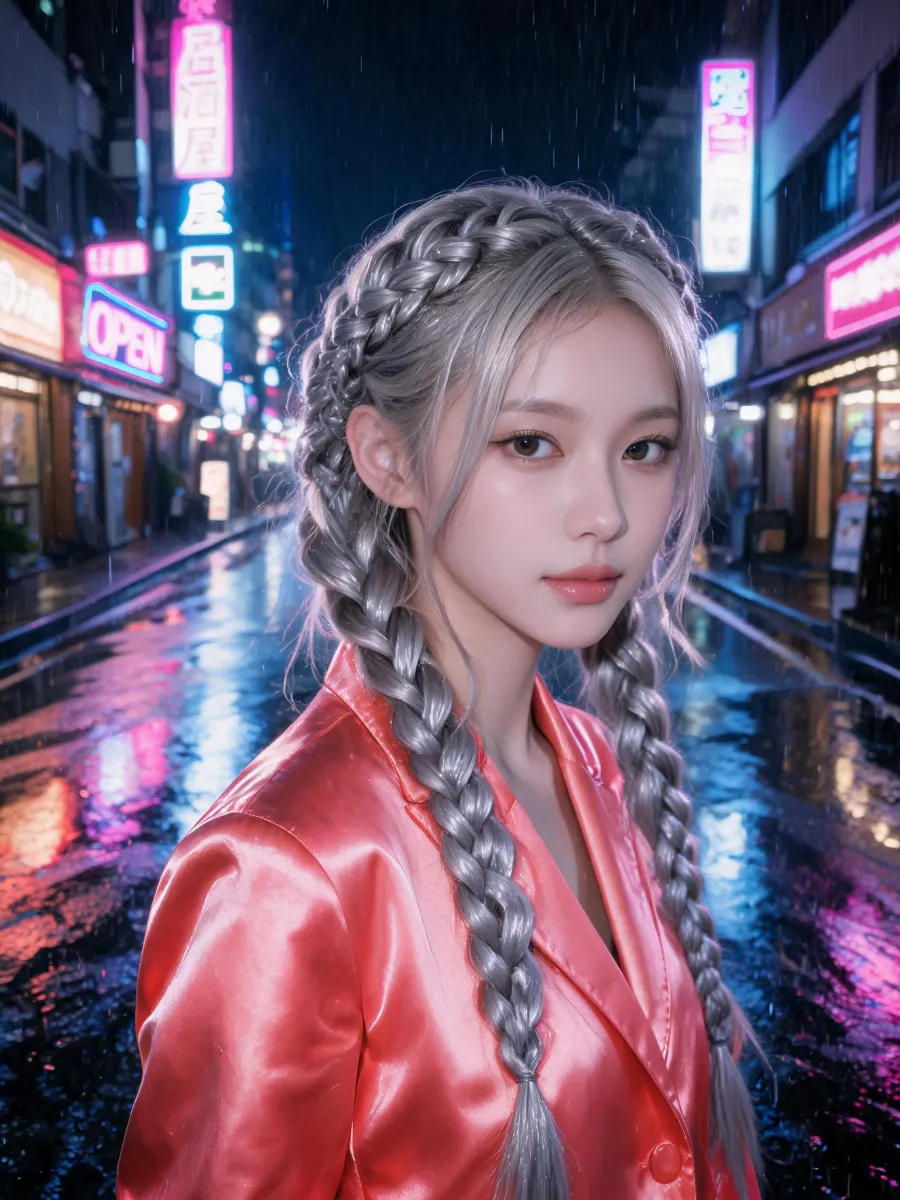
Image to video is the most controllable way to make an AI video: you choose the exact first frame, and the model only has to invent the motion. But it still goes wrong in recognizable ways — faces melt, hands sprout fingers, the camera won't move, or the clip shimmers. Almost every one of these problems has a cause you can fix before the next attempt.
This guide covers twelve common problems with Seedance 2.0 on Dola AI, what causes each one, and what to change.
Before you start: the three biggest levers
Most results improve when you get these right first:
- The start image. Sharp, well-lit, uncluttered, and in the same aspect ratio as the video.
- The prompt describes motion only. The image already shows what things look like; the prompt should say how they move.
- The amount of motion fits the subject. Small, natural movement for people; bigger movement for landscapes, vehicles and products.
Problems with people
1. The face changes or "melts" during the clip
Why: The model has to redraw the face in every frame. Large head turns, fast motion and low-resolution faces give it room to drift.
Fix:
- Use a start image where the face is large, sharp and evenly lit.
- Ask for small motion: "subtle smile, slight head tilt, blinks naturally".
- Keep the clip shorter (5–6 seconds) and use Seedance 2.0 Pro for the final render — it holds identity better.
2. Hands get extra fingers or blur
Why: Hands are small, complex and often partly hidden, which makes them hard to track.
Fix: Avoid prompts that make hands do precise tasks (typing, playing piano, tying laces). If hands must move, keep them large in the frame and describe simple motion: "she lifts the cup to her lips". Cropping the start image so hands are out of frame is often the simplest solution.
3. The person moves unnaturally or too much
Why: Vague energetic words ("dynamic", "action-packed") push the model to add motion everywhere.
Fix: Name the one action you want and the speed: "walks slowly toward the camera", "turns her head to look out of the window". Add "the camera stays still" if you don't want the frame to move as well.
Problems with motion
4. The video barely moves
Why: The prompt describes the scene instead of the motion, or the image looks like a finished still with nothing obvious to animate.
Fix: Write verbs, not adjectives. Instead of "a beautiful mountain lake at sunrise", try "mist drifts across the lake, the camera slowly pushes forward, sunlight spreads over the water". Naming a camera move — push in, pull back, orbit, pan left, crane up — reliably adds movement.
5. The camera ignores my instruction
Why: Several conflicting camera instructions, or a camera move that the composition doesn't allow (for example, an orbit around a subject pressed against a wall).
Fix: Use one camera move per clip and put it at the start of the prompt: "Slow orbit around the bottle…". Leave space around the subject in the start image so the camera has room to move.
6. Objects morph into something else
Why: Long durations and big motion give the model time to "reinterpret" objects, especially if they are small or unusual.
Fix: Shorten the clip, slow the motion down, and keep the important object large in the frame. For products, describe exactly how it should move: "rotates 90 degrees on the turntable".
7. The clip doesn't land on my end image
Why: The start and end images are too different in framing, lighting or subject position, so the model can't find a believable path between them.
Fix: Make the end image a small step from the start — the same scene with the product turned, the door opened, or the light changed. Generate the end frame with the AI Image Editor from your start image so everything else stays identical.
Problems with image quality
8. Flicker or shimmering textures
Why: Fine repeating patterns (grass, gravel, knitted fabric, brick walls) and noisy, low-light start images are hard to keep stable across frames.
Fix: Use a cleaner, brighter start image, reduce busy patterns, and render with Pro at 720p or 1080p. Slower motion also reduces shimmer.
9. The video looks blurry
Why: A small or compressed start image, or a 480p render being watched full screen.
Fix: Upload the largest, sharpest version of your image (JPG, PNG or WebP, under 10 MB). Draft at 480p, but render the final at 720p, or 1080p with Pro for big screens.
10. The video is cropped or the subject is cut off
Why: The start image's aspect ratio doesn't match the video's aspect ratio, so the image is cropped to fit.
Fix: Crop the image yourself to 9:16, 16:9 or 1:1 before uploading — or generate it in the right ratio in the AI Image Generator — so you control what stays in the frame.
Problems with the generation itself
11. The generation was blocked
Why: The model's safety filter flagged the image or the prompt. Explicit content, graphic violence and some images of real people are blocked.
Fix: Rephrase the prompt or use a different image. Blocked attempts cost nothing — the credits are returned automatically. Please don't try to work around safety filters; that breaks our Terms of Service.
12. It's taking a long time, or it failed
Why: Video generation usually takes 1–3 minutes but can take longer when the models are busy.
Fix: You can close the tab — the result appears in My Creations when it's ready. If a generation fails or doesn't finish within 30 minutes, the credits return to your balance automatically. If the same prompt keeps failing, simplify it and try again, or contact us with the creation link.
A checklist for your next attempt
Before you click Generate, run through this list:
- The start image is sharp, bright and the same aspect ratio as the video.
- Important subjects are large in the frame, with space for the camera to move.
- The prompt describes motion with verbs, with one main action.
- There is at most one camera move.
- People move a little; landscapes and products can move more.
- Drafts are 5 seconds at 480p with Fast; the final uses higher settings.
- You're changing only one thing compared with the last attempt.
Prompt templates that avoid most problems
Portrait: "The camera stays still. She slowly turns her head toward the window and smiles softly, hair moving slightly in the breeze, natural light."
Product: "Slow 360-degree turntable rotation of the product, soft studio light sweeps across the surface, clean background, no other movement."
Landscape: "Slow drone push forward over the valley, clouds drift across the peaks, golden light moves over the hills."
Food: "Close-up, steam rises from the bowl, a spoon slowly lifts noodles, shallow depth of field, the camera holds still."
For more on prompt structure, read our AI video prompt guide; for e-commerce specifically, see how to turn product photos into videos.
Summary
When image to video goes wrong, the fix is usually in one of three places: a better start image, a prompt that describes motion instead of appearance, or less motion and a shorter clip. Change one thing at a time, draft cheaply, and save the prompts that work.